Set up Microsoft
Kestrel doesn't come with a Microsoft app. To use Outlook.com, Hotmail, Live or Microsoft 365, you register a free app of your own in Microsoft Entra, which takes a few minutes, and sign in through it. Your Mac then talks to Microsoft directly, through your app and nobody else's. There's no password to type: you sign in on Microsoft's own page.
Registering the app needs a Microsoft Entra tenant. Work and school accounts usually belong to one; for a personal account, a free Azure account comes with one.
Add an Outlook account
Press ⌘ K and choose Add Account, or on the sign-in screen click Use Outlook, Proton Mail, Fastmail, iCloud or another IMAP account. Pick Outlook. The form lists four steps, and Open App registrations opens the page you start from.
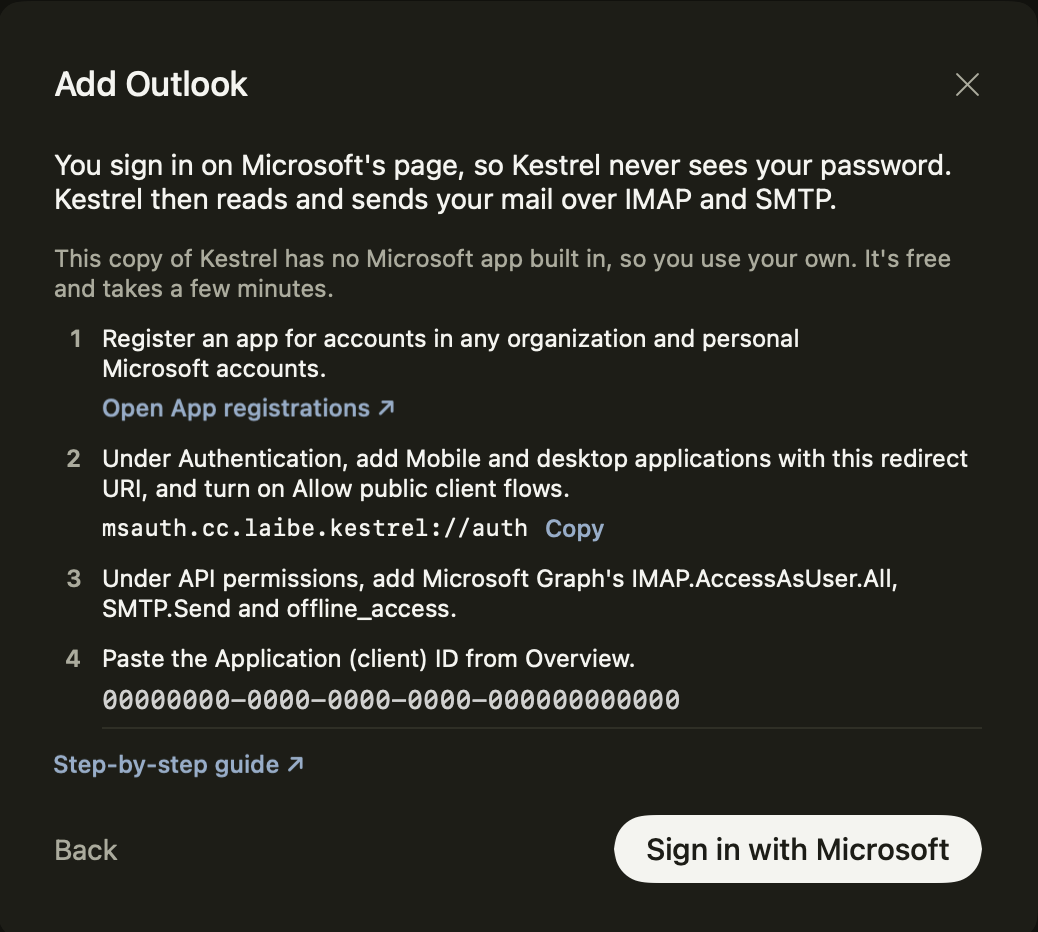
1. Register an app
On App registrations, click New registration and give the app any name. Under Supported account types, pick Accounts in any organizational directory and personal Microsoft accounts. Kestrel signs in through Microsoft's common sign-in page, which turns away an app made for one organization only, with the error AADSTS50194.
2. Add the redirect URI
In your new app, open Authentication, click Add a platform and choose Mobile and desktop applications. Add this as a custom redirect URI; the form has a Copy button for it:
msauth.cc.laibe.kestrel://auth
Then set Allow public client flows to Yes and save. Kestrel needs no client secret.
3. Allow the mail permissions
Open API permissions, click Add a permission, choose Microsoft Graph and then Delegated permissions,
and add IMAP.AccessAsUser.All, SMTP.Send and offline_access. Add openid, email and profile too if they
aren't listed already.
You agree to these the first time you sign in. If your organization doesn't let people allow apps themselves, an admin clicks Grant admin consent on this page.
4. Paste the Application (client) ID
Open Overview and copy the Application (client) ID. Paste it into the form and click Sign in with Microsoft. Microsoft's page opens: sign in and allow what Kestrel asks for. Kestrel then signs in to Outlook's IMAP and SMTP servers before it saves the account, and says what went wrong if one of them refuses.
The ID is saved on your Mac and used for every Outlook account you add.
What Kestrel asks for
| Permission | What Kestrel uses it for |
|---|---|
IMAP.AccessAsUser.All |
Reading, filing and deleting mail over IMAP |
SMTP.Send |
Sending mail over SMTP |
offline_access |
Renewing the sign-in, so you stay signed in |
openid, email, profile |
Your name and address for the account |
The sign-in Microsoft gives Kestrel is stored in the macOS keychain, one entry per account, and Kestrel renews it as it needs to. When Microsoft stops renewing it, because the password changed, access was taken back or the account went unused for months, the bar above the list says the sign-in expired, with Sign in again.
Work and school accounts
A Microsoft 365 organization has to allow IMAP and authenticated SMTP for your mailbox. Many turn authenticated SMTP off, and then sending fails with "SmtpClientAuthentication is disabled". An admin can turn on Authenticated SMTP for your mailbox in the Microsoft 365 admin center, under your user, Mail and Manage email apps.
How Outlook works in Kestrel
Kestrel reads and sends Outlook mail over IMAP (outlook.office365.com:993, TLS) and SMTP (smtp.office365.com:587,
STARTTLS), so an Outlook account works like the other IMAP accounts: mail
only, with folders as labels and no calendar. Sent Items, Deleted Items, Junk Email and Archive are the folders Outlook
already uses.